
Essential Video Conferencing Setup for Healthcare and Telemedicine
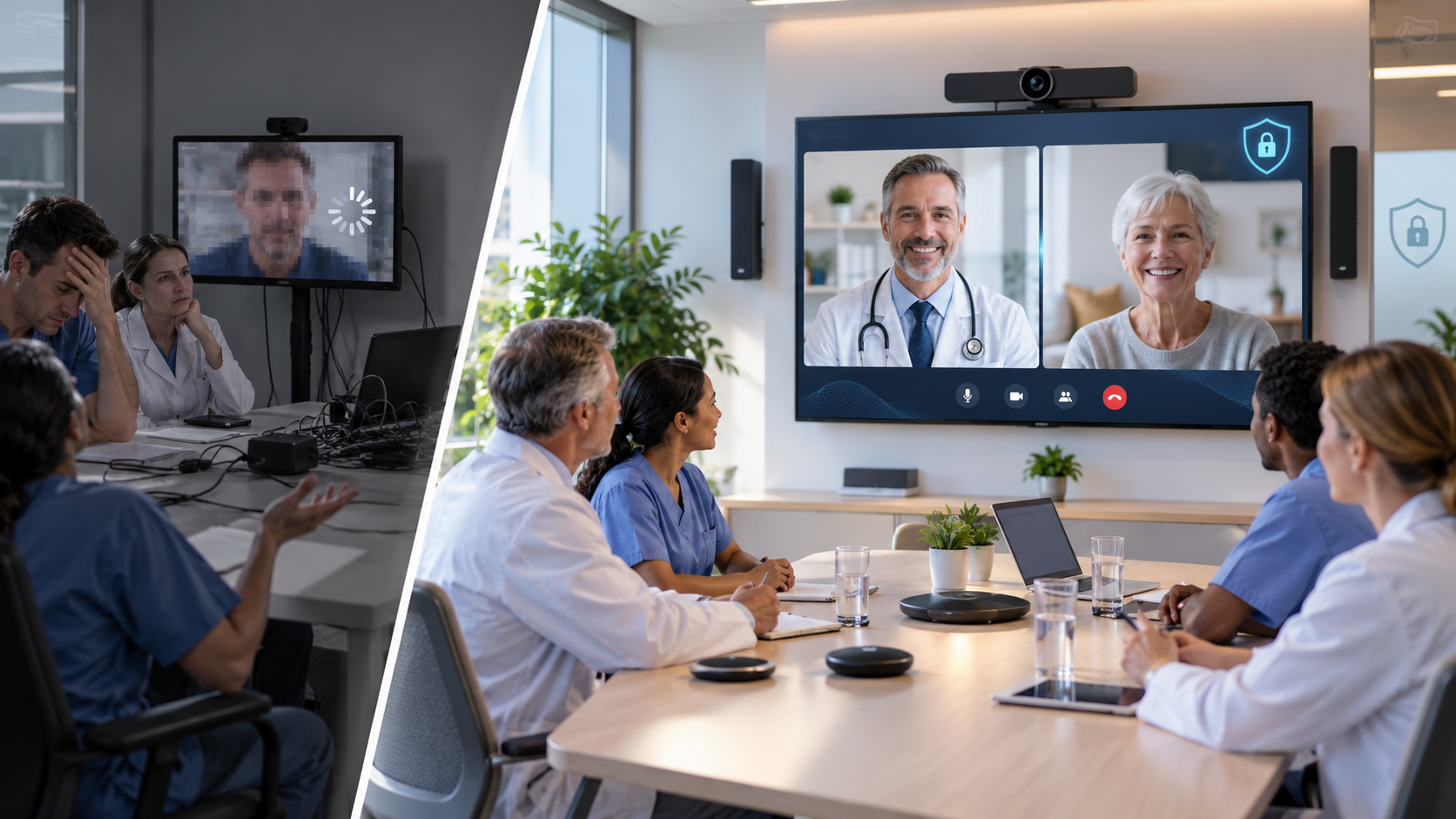
Most medical clinics still rely on outdated meeting room setups that struggle with patient privacy and connection quality. You know how frustrating dropped calls and unclear video can be when every second counts. Upgrading your telemedicine video conferencing setup will ensure secure telehealth communication and smoother healthcare video communication for your team and patients.
Why Your Current Setup Isn’t Cutting It Anymore
Let’s be honest. That conference room you set up five years ago probably has a webcam that makes everyone look grainy, speakers that echo, and microphones that pick up every sound except the person talking. For casual business meetings, that might be annoying. For healthcare? It’s a real problem.
Patient consultations need crystal-clear audio and video. When a doctor is examining a rash over video or discussing test results, poor quality can lead to misdiagnosis or missed details. Your team deserves better tools, and your patients deserve better care.
The shift to telehealth happened fast. Many clinics grabbed whatever technology was available and made it work. Now it’s time to upgrade to a proper telemedicine video conferencing setup that meets your actual needs.
Understanding What Makes Healthcare AV Solutions Different
Medical clinic meeting room tech has special requirements that regular business conferencing doesn’t address. You’re not just hosting team meetings. You’re conducting patient consultations, specialist reviews, and confidential discussions that require HIPAA compliance.
Here’s what sets healthcare video communication apart:
Privacy and Compliance Requirements
Every video call involving patient information must meet strict privacy standards. Your telemedicine hardware solutions need end-to-end encryption, secure data transmission, and audit trails. This isn’t optional. It’s the law.
Regular consumer-grade video platforms won’t cut it. You need healthcare-specific solutions that were built with medical privacy in mind from the ground up.
Clinical-Grade Audio and Video Quality
When a specialist is reviewing an X-ray or examining a patient remotely, they need to see fine details. Standard definition video creates liability risks. Your setup needs high-definition cameras with excellent color accuracy and the ability to zoom without losing clarity.
Audio quality matters just as much. A patient describing symptoms or a colleague presenting a case needs to be heard clearly without background noise interference.
Reliability Under Pressure
In healthcare, connection failures aren’t just inconvenient. They can delay critical care decisions. Your secure telehealth communication system needs redundancy, backup options, and rock-solid reliability.
Core Components of a Professional Telemedicine Video Conferencing Setup
Let’s break down what you actually need to create a meeting room that works for healthcare. Think of this as your shopping list for better patient care.
High-Quality Camera Systems
Start with a camera that can handle different scenarios. You’ll want:
A 4K camera with excellent low-light performance for various room conditions. Pan, tilt, and zoom features let you focus on specific areas during examinations or presentations. Wide-angle lenses capture everyone in group consultations.
Position your camera at eye level. This creates natural, comfortable interactions that help build patient trust. Mount it securely on the wall or use a professional tripod, not a wobbly desk stand.
Professional Audio Equipment
Bad audio ruins more video calls than bad video. Invest in quality microphones and speakers designed for conference rooms.
Ceiling microphones or boundary microphones placed on the table pick up voices clearly while reducing echo. They cover the whole room so participants can speak naturally without leaning into a device.
Separate speakers prevent that hollow, tinny sound you get from laptop speakers. Position them properly to avoid feedback loops and echo chambers.
Consider noise cancellation technology. Medical clinics are busy places. You don’t want sirens, overhead pages, or hallway conversations interrupting patient consultations.
Display Solutions That Work
A single small monitor doesn’t work for group consultations or training sessions. Your healthcare AV solutions should include displays large enough for everyone to see clearly.
Dual monitors work great. Use one for the video feed and another for sharing medical records, test results, or educational materials. This setup lets you maintain eye contact while reviewing information together.
For larger rooms, consider a professional display of 55 inches or more. Make sure it has excellent color accuracy for reviewing medical imaging.
Reliable Network Infrastructure
All the fancy cameras and microphones in the world won’t help if your internet connection drops mid-consultation. Your telemedicine hardware solutions need a solid network foundation.
Hardwired ethernet connections beat WiFi every time for stability. If you must use wireless, set up a dedicated network just for telehealth that doesn’t compete with other clinic traffic.
Work with your IT team to prioritize video traffic on your network. Quality of Service (QoS) settings ensure your video calls get the bandwidth they need even when the network is busy.
Test your upload and download speeds. You need at least 3-4 Mbps for HD video, but aim for 10 Mbps or more for the best quality and reliability.
Setting Up Your Room for Success
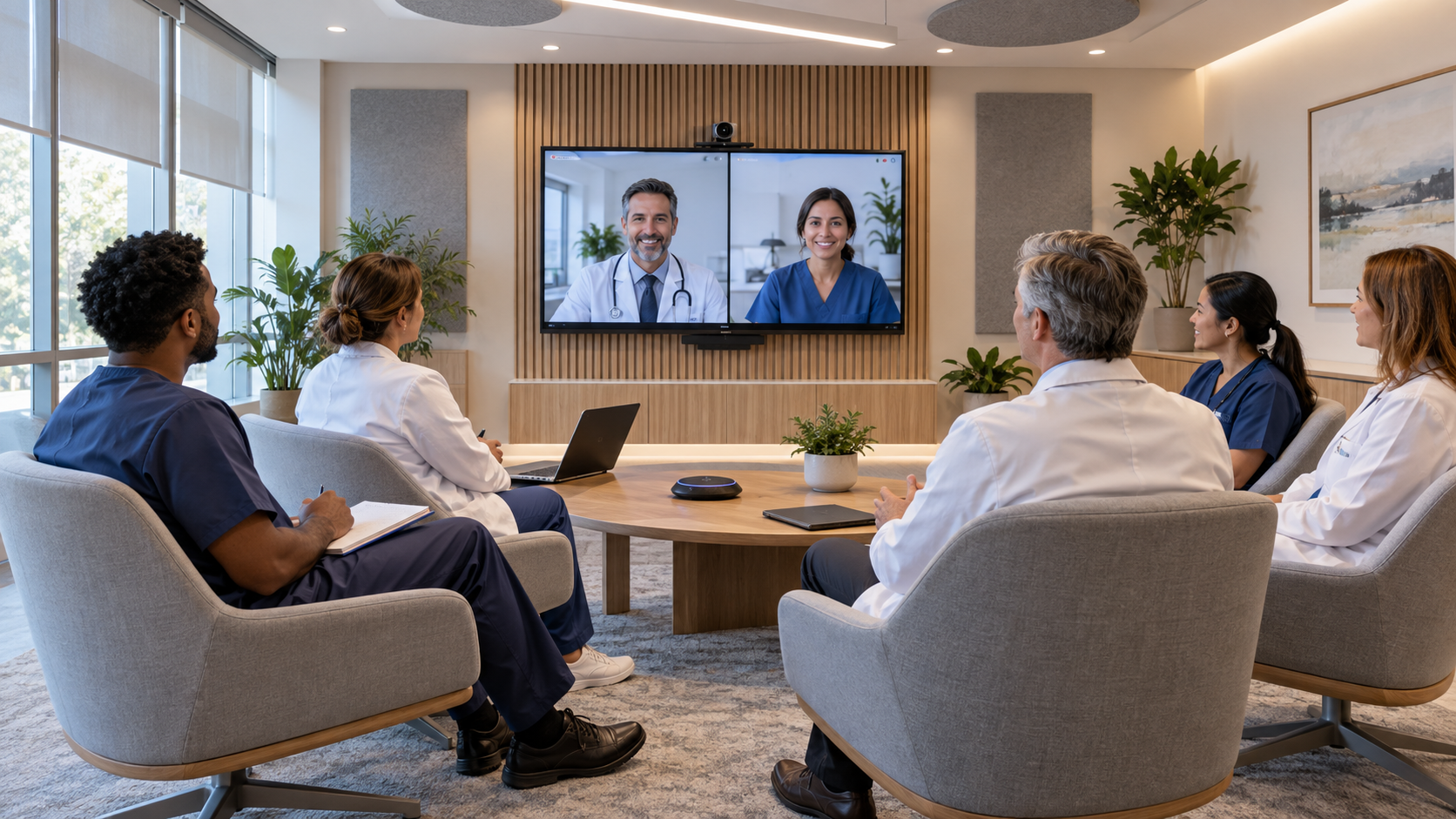
Great equipment only works well in a properly configured space. Let’s talk about the physical setup of your medical clinic meeting room tech.
Lighting Makes All the Difference
Natural light is great, but it’s unpredictable. Windows behind speakers create silhouette effects that make faces hard to see. Windows facing speakers create glare and squinting.
Add controllable LED lighting that provides even, natural-looking illumination. Position lights in front of and slightly above participants to eliminate shadows without creating harsh glare.
Ring lights or softbox lights designed for video work perfectly for one-on-one consultations. They’re affordable and make everyone look professional.
Acoustic Treatment
Hard surfaces create echo. Carpeting, acoustic panels, and soft furnishings absorb sound and improve audio quality dramatically.
You don’t need to turn your conference room into a recording studio. Simple additions like fabric wall panels, curtains, or acoustic ceiling tiles make a huge difference.
Furniture and Room Layout
Arrange seating so everyone can see the camera and displays comfortably. U-shaped or semicircular arrangements work better than long rectangular tables where people at the ends feel disconnected.
Keep the background simple and professional. A plain wall, your clinic logo, or subtle artwork looks better than cluttered shelves or busy patterns.
Position the camera and displays at the same location so participants look at the camera when looking at the screen. This creates more natural eye contact.
Software and Platform Considerations for Secure Telehealth Communication
Your platform choice matters as much as your hardware. Healthcare video communication needs HIPAA-compliant software designed for medical use.
HIPAA-Compliant Platforms
Not all video conferencing platforms meet healthcare privacy requirements. Consumer platforms that work fine for business meetings may not provide the security and documentation you need.
Look for platforms that offer Business Associate Agreements (BAAs). This legal document confirms the vendor will protect patient information according to HIPAA standards.
Features to prioritize include end-to-end encryption, secure waiting rooms, session recording with consent, and audit logs that track who accessed what information.
User-Friendly Interfaces
Your staff and patients need to use this technology easily. Complex systems with steep learning curves create frustration and errors.
Choose platforms with simple, intuitive interfaces. Patients should be able to join calls with a single click, no downloads or account creation required.
For staff, the system should integrate smoothly with your existing electronic health records and scheduling systems. The easier it is to use, the more likely your team will actually use it properly.
Technical Support and Training
When something goes wrong during a patient consultation, you need help fast. Select vendors that offer responsive technical support during your clinic hours.
Invest time in proper staff training. Everyone who uses your telemedicine video conferencing setup should feel comfortable with basic troubleshooting and know who to call for bigger issues.
Budgeting for Your Healthcare AV Solutions Upgrade
Let’s talk money. Quality telemedicine hardware solutions require investment, but you don’t have to break the bank.
Understanding the Cost Range
Basic setups for small consultation rooms start around $2,000-$5,000. This gets you a good camera, microphone, speaker, and display with professional mounting.
Mid-range systems for larger conference rooms run $5,000-$15,000. These include better cameras with auto-tracking, advanced audio systems, and integrated control systems.
High-end installations for training rooms or multi-specialty consultations can exceed $20,000. These feature multiple cameras, professional lighting, advanced audio mixing, and sophisticated control systems.
Don’t forget ongoing costs like software subscriptions, maintenance contracts, and eventual upgrades. Factor these into your total cost of ownership.
Return on Investment
Quality healthcare video communication pays for itself through expanded patient access, reduced no-show rates, and the ability to consult with specialists remotely.
Calculate how many more patients you can see when travel time is eliminated. Consider the value of attracting patients who prefer or need virtual options.
Better technology also improves staff satisfaction. Your team will appreciate tools that actually work instead of fighting with unreliable equipment.
Phased Implementation
You don’t have to upgrade everything at once. Start with your highest-priority spaces and expand over time.
Begin with one or two consultation rooms to test your setup and work out any issues. Once you’ve refined the process, roll out to additional spaces.
This approach spreads costs over time and lets you learn from early installations before committing to a full-scale upgrade.
Installation and Setup Best Practices
Getting your medical clinic meeting room tech installed correctly matters as much as choosing the right equipment.
Work with Healthcare Technology Specialists
General AV installers may not understand healthcare-specific requirements. Look for vendors with experience in medical facilities who know HIPAA compliance and clinical workflows.
Ask for references from other healthcare clients. Visit their installations if possible to see the quality of work and talk with users about their experience.
Plan for Minimal Disruption
Clinics can’t shut down for days while technology gets installed. Work with your vendor to schedule installation during off-hours or in phases that minimize impact on patient care.
Have backup plans for patient appointments during installation. Temporary setups or alternative locations keep care flowing while upgrades happen.
Testing and Validation
Before going live with patient consultations, test everything thoroughly. Make test calls to verify video quality, audio clarity, and connection stability.
Run through common scenarios like screen sharing, recording sessions, and handling connection issues. Make sure your staff knows how to handle technical hiccups gracefully.
Test your setup with actual staff members who will use it daily. Their feedback helps identify issues and refinement opportunities before patients are involved.
Training Your Team for Success
The best telemedicine video conferencing setup in the world won’t help if your team doesn’t use it properly.
Comprehensive Staff Training
Schedule hands-on training sessions where staff can practice with the equipment in a low-pressure environment. Cover basic operations, common troubleshooting, and best practices for patient interactions.
Create simple reference guides with step-by-step instructions for common tasks. Laminated quick-start cards near the equipment help staff who don’t use it daily.
Assign technology champions within each department. These team members get extra training and become the first point of contact for questions.
Best Practices for Virtual Patient Care
Video consultations require different techniques than in-person visits. Train your staff on camera presence, eye contact, and clear communication.
Teach them to speak clearly and at a measured pace. Video can introduce slight delays that make rapid-fire conversation confusing.
Practice active listening techniques that work on video. Nodding, verbal acknowledgments, and summarizing what patients say helps ensure understanding.
Ongoing Support and Refresher Training
Technology changes and people forget things. Schedule regular refresher sessions to reinforce skills and introduce new features.
Create a feedback loop where staff can report issues or suggest improvements. This helps you continuously refine your secure telehealth communication processes.
Maintaining Your Healthcare Video Communication System
Installation isn’t the end. Regular maintenance keeps your system running smoothly.
Regular Equipment Checks
Schedule monthly checks of all cameras, microphones, speakers, and displays. Look for physical damage, loose connections, or degraded performance.
Clean camera lenses and display screens regularly. Dust and smudges affect image quality more than you’d think.
Update firmware and software on a regular schedule. These updates often include security patches, bug fixes, and performance improvements.
Network Monitoring
Monitor your network performance to catch issues before they affect patient care. Track bandwidth usage, connection stability, and any unusual patterns.
Work with your IT team to maintain network security. Healthcare systems are prime targets for cyber attacks, so vigilance is essential.
Vendor Support Relationships
Maintain good relationships with your equipment vendors and service providers. When you need help, these connections make problem resolution faster.
Consider service contracts that include regular preventive maintenance and priority support. The peace of mind often justifies the cost.
Future-Proofing Your Investment
Technology changes fast. Build flexibility into your telemedicine hardware solutions so they can grow with your needs.
Scalable Systems
Choose modular systems that can expand. You might start with basic video calls but later want to add medical device integration, AI transcription, or multi-site connections.
Open standards and common protocols give you more options than proprietary systems that lock you into one vendor.
Staying Current with Healthcare Technology Trends
Keep an eye on emerging trends in healthcare AV solutions. Artificial intelligence, virtual reality, and augmented reality are starting to play roles in telemedicine.
You don’t need to jump on every new trend, but awareness helps you plan for future capabilities your clinic might want.
Regular Technology Reviews
Schedule annual reviews of your medical clinic meeting room tech. Assess what’s working, what needs improvement, and what new capabilities might benefit your practice.
Technology that seemed great three years ago might now be holding you back. Regular reviews help you stay current without constant disruption.
Making the Move to Better Healthcare Video Communication
Upgrading your telemedicine video conferencing setup feels like a big project. It is. But breaking it into manageable steps makes it achievable.
Start by assessing your current situation. What works? What doesn’t? What do your staff and patients complain about most? These pain points guide your priorities.
Research your options. Talk to vendors, visit other clinics with modern setups, and get quotes from multiple providers. Knowledge helps you make confident decisions.
Create a realistic budget and timeline. Factor in equipment costs, installation, training, and ongoing support. Get buy-in from decision makers before moving forward.
Choose partners who understand healthcare. Your vendors should know HIPAA requirements, clinical workflows, and the unique challenges of medical environments.
Plan your implementation carefully. Minimize disruption, communicate clearly with staff, and build in time for testing and adjustment.
Invest in proper training. The technology only works if people use it correctly and confidently.
Your patients deserve clear, reliable, secure telehealth communication. Your staff deserves tools that make their jobs easier, not harder. Quality healthcare video communication benefits everyone.
The clinics that invest in proper telemedicine hardware solutions today will be the ones thriving tomorrow. They’ll attract more patients, provide better care, and operate more efficiently.
Take the first step. Assess one room. Get one quote. Talk to one vendor. Progress happens one decision at a time.
Your upgraded medical clinic meeting room tech is closer than you think. The patients you’ll be able to help and the frustrations you’ll eliminate make the effort worthwhile.
Frequently Asked Questions
What equipment do I need for a basic telemedicine video conferencing setup?
At minimum, you need a high-definition camera, professional microphone, quality speakers, a large display, and a HIPAA-compliant video platform. A reliable hardwired internet connection is critical. Most basic setups also include simple mounting hardware and cable management. For healthcare use, prioritize equipment that delivers clear audio and video over fancy features you won’t use.
How do I ensure my video conferencing system is HIPAA compliant?
Choose platforms that offer Business Associate Agreements and provide end-to-end encryption. Your system should include secure waiting rooms, encrypted data transmission, and audit logs. Work with vendors who specialize in healthcare technology and understand medical privacy requirements. Regular security updates and staff training on proper use are also essential for maintaining compliance.
What internet speed do I need for reliable healthcare video communication?
For HD video quality, you need at least 3-4 Mbps upload and download speeds per room. However, 10 Mbps or higher is recommended for the best reliability and quality. Hardwired ethernet connections provide more stability than WiFi. Consider setting up Quality of Service (QoS) rules on your network to prioritize video traffic during consultations.
How much does it cost to upgrade a medical clinic meeting room for telemedicine?
Basic consultation room setups typically cost $2,000-$5,000 for equipment and installation. Larger conference rooms with advanced features run $5,000-$15,000. High-end training or multi-specialty rooms can exceed $20,000. Don’t forget ongoing costs like software subscriptions, maintenance, and eventual upgrades. Phased implementation lets you spread costs over time while testing what works best for your clinic.
How long does it take to install and train staff on new telemedicine hardware?
Physical installation of equipment typically takes one to three days per room, depending on complexity. Staff training requires at least 2-4 hours of hands-on practice for basic competency. Plan for 2-4 weeks total from equipment arrival to full operational use, including installation, testing, training, and refinement. Working with experienced healthcare technology vendors who schedule around your clinic hours minimizes disruption to patient care.
