
The 5 Most Common Points of Failure in Corporate Meeting Rooms (And How to Fix Them)
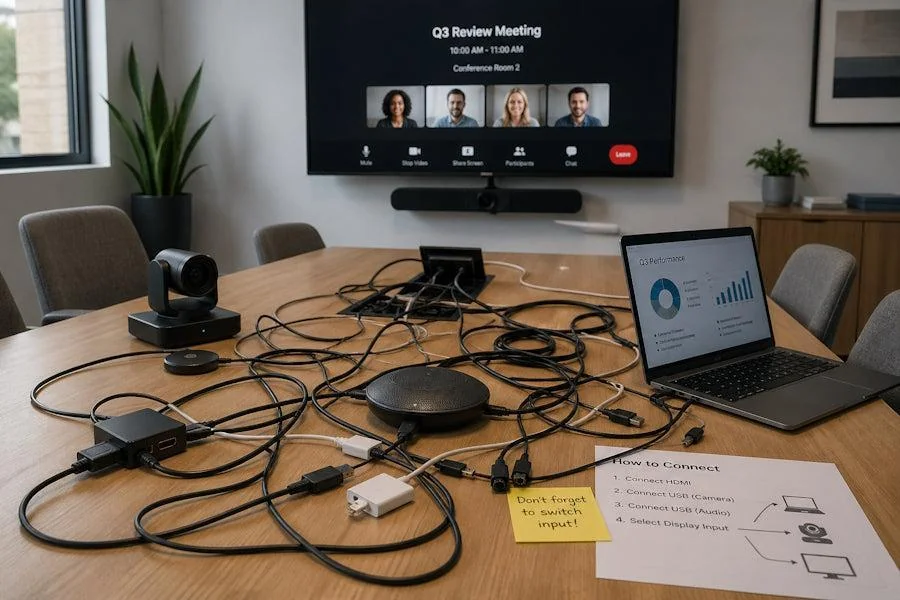
Every minute your meeting room struggles with echo, camera lag, or disconnected cables, valuable time slips away. These common issues don't just frustrate your team - they drag down productivity and waste resources. In this post, you'll find clear steps for meeting room troubleshooting that cut conference room downtime and keep your reliable AV systems running smoothly. Let's tackle the five most common failure points and how to fix them before they cause your next headache.
The Real Cost of Meeting Room Failures
Before we jump into solutions, let's talk about what's actually at stake. When your conference room fails mid-meeting, you're not just dealing with technical frustration. You're looking at delayed decisions, rescheduled client calls, and a team that's losing confidence in your tech setup.
The average company loses 37 hours per year to technical issues in meeting spaces. That's nearly a full work week. For an operations manager or IT lead, this means constant firefighting instead of strategic planning. And when you're trying to support hybrid work, these failures hit even harder.
The good news? Most meeting room problems come from the same five failure points. Fix these, and you'll prevent the majority of your headaches.
Point of Failure #1: Audio Echo and Feedback Loops
Why It Happens
Audio issues top the list for meeting room troubleshooting calls. Echo happens when your microphone picks up sound from your speakers, creating that awful feedback loop everyone dreads. This gets worse in rooms with hard surfaces like glass walls, concrete floors, or large conference tables.
Quick Fixes You Can Try Right Now
Start by checking your volume levels. Turn down speaker volume by 20% and see if the echo disappears. Make sure any laptops in the room have their built-in microphones muted if you're using a dedicated conference mic.
Move microphones away from speakers. They should be at least three feet apart. If your mic sits right next to a speaker, you're asking for trouble.
Test your acoustic environment. Clap your hands in the empty room. If you hear a long echo, your space needs acoustic treatment. Add sound-absorbing panels, curtains, or even strategically placed plants to dampen reflections.
Long-Term Solutions
Invest in echo cancellation technology. Modern conference systems include digital signal processing that eliminates echo automatically. Look for devices with acoustic echo cancellation (AEC) built in.
Position your equipment correctly during installation. Your AV integration partner should perform acoustic testing and place speakers and microphones based on your room's specific characteristics, not just convenience.
Consider a professional acoustic assessment. Sometimes the room itself is the problem. Commercial AV support teams can measure your space and recommend targeted improvements that actually work.
Point of Failure #2: Camera Connectivity and Video Lag
The Root Causes
Camera issues frustrate remote participants more than almost anything else. Lag, frozen frames, or complete disconnection make virtual attendees feel like second-class participants. These problems usually stem from bandwidth limitations, USB cable issues, or outdated firmware.
Immediate Troubleshooting Steps
Check your cables first. USB cables longer than 15 feet often cause connectivity problems. If you need longer runs, use active USB cables or USB-over-Ethernet extenders.
Restart the camera and conferencing software. Yes, it's the oldest trick in the book, but it works. Power cycle your camera by unplugging it for 30 seconds.
Test your network bandwidth. Run a speed test from the conference room. You need at least 5 Mbps upload speed for quality video. If you're getting less, you've found your problem.
Close unnecessary applications. Every program running on your conference room PC eats processing power. Shut down everything except your video conferencing software.
Preventing Future Camera Problems
Update firmware regularly. Camera manufacturers release updates that fix bugs and improve performance. Set a monthly reminder to check for updates.
Use wired connections whenever possible. WiFi cameras are convenient but unreliable. A physical Ethernet connection gives you stable, predictable performance.
Separate your conference room traffic onto a dedicated network. When conference rooms share bandwidth with the entire office, video quality suffers during busy times. Your IT team can create a VLAN specifically for meeting spaces.
Install quality-of-service (QoS) rules on your network. This tells your router to prioritize video traffic over file downloads and other less time-sensitive data.
Point of Failure #3: Cable and Connection Issues
Understanding the Problem
Loose HDMI cables, worn USB ports, and mystery adapters create daily frustration. People wiggle cables, unplug things incorrectly, and generally treat conference room equipment like their personal laptop. Over time, this wear and tear adds up.
Quick Diagnostic Steps
Label everything. Seriously. Put clear labels on every cable showing what it connects to and which end goes where. This simple step prevents 90% of user error.
Check cable connections by hand. Gently wiggle each cable at both ends. If it moves easily, it's not fully seated. HDMI and USB cables should click into place.
Keep a spare cable kit in each room. Have backup HDMI, USB, and power cables ready to swap in. This turns a 30-minute problem into a 30-second fix.
Create a simple connection diagram. Laminate it and stick it on the wall. Show people exactly which cable goes where for different setups.
Building a More Reliable Setup
Use cable retention clips. These small plastic pieces lock cables into ports and prevent accidental disconnection. They cost pennies but save hours of conference room downtime.
Install cable management systems. Cables that hang loose get yanked and damaged. Run them through conduits or cable trays to protect them.
Choose the right cables for the job. Not all HDMI cables support 4K at 60Hz. Not all USB cables carry enough power. Buy certified cables rated for your specific needs.
Consider wireless presentation systems. Products like Barco ClickShare or Mersive Solstice let people share their screen without touching a single cable. This eliminates cable-related failures entirely.
Replace cables on a schedule. Don't wait for cables to fail. Swap them out every two years as part of your proactive AV maintenance routine.
Point of Failure #4: Software Updates and Compatibility
Why This Keeps Breaking
Your Zoom room worked perfectly last month. Then Microsoft Teams pushed an update, and suddenly nothing works. Software updates are necessary for security and features, but they break compatibility with alarming frequency.
Managing Update Problems
Create a testing environment. Don't let updates hit your production meeting rooms automatically. Test them first in a spare room or on a dedicated test machine.
Delay automatic updates by 30 days. This gives other people time to find the bugs. Let someone else be the guinea pig, then apply updates once they're proven stable.
Document your current working configuration. Write down software versions, driver versions, and settings. When an update breaks something, you can roll back to a known good state.
Subscribe to vendor release notes. Most conferencing platforms publish what's changing in each update. Read these before applying updates to spot potential problems.
Creating a Stable Software Environment
Partner with vendors who support your hardware. Not every video conferencing platform works well with every camera and microphone. Choose combinations that vendors officially support.
Standardize your meeting room software stack. Don't run Zoom in one room, Teams in another, and Webex in a third. Pick one primary platform and stick with it. This makes troubleshooting and training infinitely easier.
Enable remote management tools. Software like Crestron Fusion or Extron GlobalViewer lets your IT team monitor and update all meeting rooms from one dashboard. You can push updates during off-hours and verify they worked before anyone walks into the room.
Work with an AV integration partner who understands software lifecycles. They can help you plan updates, test compatibility, and maintain stable systems across your entire facility.
Point of Failure #5: User Error and Lack of Training
The Human Factor
Let's be honest. Most meeting room problems aren't technical failures. They're people problems. Someone unplugged the wrong cable, changed a setting they shouldn't have touched, or simply doesn't know how to start a video call.
You can't fix user error with better hardware. You need better processes.
Making Rooms Foolproof
Simplify your user interface. The best meeting room has one big button that says "Start Meeting." Everything else should happen automatically.
Hide advanced settings behind a password. Users should never see audio routing options, network settings, or firmware update screens. Lock those down so only IT can access them.
Create one-page quick start guides. Use pictures, not words. Show exactly which buttons to press in which order. Laminate these guides and put them at every seat.
Add visual indicators. Use LED lights to show when the microphone is muted, when the camera is on, and when the room is recording. People should never have to guess about system status.
Training That Actually Sticks
Run monthly lunch-and-learn sessions. Show people how to use the meeting rooms. Make it casual, keep it short, and serve pizza. You'll get better attendance and better retention.
Record video tutorials. Film a two-minute walkthrough of starting a meeting, sharing your screen, and adjusting volume. Post it on your intranet where people can watch it on demand.
Assign meeting room champions. Identify one person per department who gets extra training. When their team has problems, they can help before calling IT.
Send reminder emails with tips. Once a month, share one quick tip about using meeting rooms better. Keep it to three sentences. People will actually read it.
Moving from Reactive to Proactive AV Maintenance
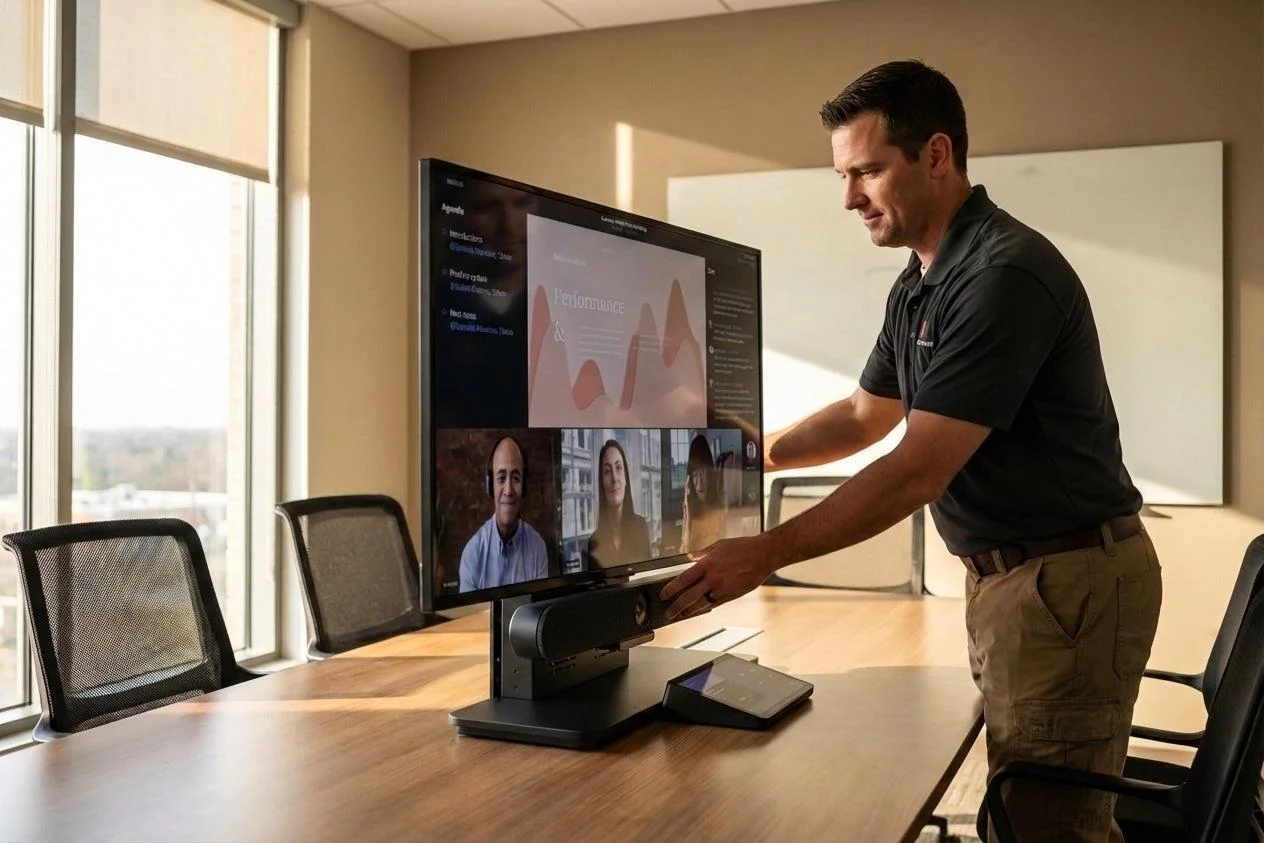
You've seen the five most common failure points and how to fix them. But here's the thing: fixing problems after they happen is exhausting. You're constantly putting out fires instead of preventing them.
The smarter approach is proactive AV maintenance. Instead of waiting for cables to fail, you replace them on a schedule. Instead of wondering if firmware is current, you have a system that checks automatically. Instead of users discovering problems during important meetings, you catch issues during routine testing.
What Proactive Maintenance Looks Like
Schedule regular room checks. Walk through each conference room weekly. Test the camera, microphone, and display. Make sure cables are secure and software is running correctly. Catch small problems before they become big ones.
Monitor your systems remotely. Modern AV equipment can report its health status over the network. You can see which rooms are online, which have errors, and which need attention.
Keep detailed maintenance logs. Write down every issue, every fix, and every replacement. Patterns will emerge. You'll see that Room 3B always has HDMI problems, or that cameras fail every 18 months. Use this data to get ahead of failures.
Build relationships with reliable vendors. Don't just call someone when things break. Find commercial AV support partners who will help you plan, maintain, and improve your systems over time.
The Bridge Service Approach
This is where River Systems' Bridge Service comes in. It's designed specifically for the challenges we've been talking about. Instead of reacting to failures, Bridge Service monitors your meeting rooms continuously and catches problems before your team notices them.
The service includes regular health checks, firmware updates, remote monitoring, and priority support when you need it. Your AV integration partner becomes a true partner, not just a vendor you call in emergencies.
Think of it like changing your car's oil every 3,000 miles instead of waiting for the engine to seize. Proactive AV maintenance costs less and causes way less stress than constant emergency repairs.
Building Your Meeting Room Troubleshooting Toolkit
Let's get practical. Here's what you should have on hand to handle the most common issues:
Physical Tools and Spares
Keep a troubleshooting kit in your IT closet with these items:
-
Spare HDMI cables (6 foot and 15 foot lengths)
-
Spare USB cables (USB-A to USB-C and USB-A to USB-B)
-
Cable tester for quick diagnostics
-
Cleaning cloths for camera lenses and displays
-
Compressed air for cleaning ports
-
Label maker for organizing cables
-
Small screwdriver set for tightening connections
-
Flashlight for checking behind equipment
Digital Resources
Create a shared folder with these documents:
-
Equipment manuals for every device in every room
-
Network diagrams showing how rooms connect
-
Troubleshooting flowcharts for common issues
-
Vendor contact information and support numbers
-
Maintenance logs and service history
-
Standard configuration settings for each room type
Knowledge Base
Document solutions to every problem you solve. Next time the same issue appears, you'll have the fix ready. Include:
-
Problem description
-
Symptoms users reported
-
Root cause
-
Step-by-step solution
-
How to prevent it from happening again
Creating a Culture of Reliable AV Systems
Technology is only part of the solution. You also need buy-in from your team and leadership.
Getting Leadership Support
Show the numbers. Calculate how much conference room downtime actually costs. Include lost productivity, delayed decisions, and IT labor. When executives see the real cost, they'll support investments in better systems and proactive AV maintenance.
Propose solutions, not just problems. Don't just complain that meeting rooms are broken. Present a plan for fixing them, including costs and expected benefits.
Start small and prove value. Pick your worst-performing meeting room and fix it completely. Track the improvement. Use that success story to get budget for the rest.
Building User Accountability
Set clear expectations. Let people know that unplugging cables, changing settings, or moving equipment creates problems for everyone. Make it a cultural norm to leave rooms the way you found them.
Make reporting easy. Create a simple way for users to report issues. A shared email address, a Slack channel, or a QR code that opens a form. Remove friction from the reporting process.
Close the loop with users. When someone reports a problem, let them know when it's fixed. This builds trust and encourages future reporting.
Your Action Plan for Better Meeting Rooms
You've got a lot of information now. Let's break it down into concrete next steps you can take this week.
This Week
Walk through every meeting room with a checklist. Test audio, video, and connections. Note what's working and what needs attention. This gives you a baseline.
Label all cables in your most important conference room. Use clear, simple labels that anyone can understand.
Create a one-page quick start guide for your standard meeting room setup. Use screenshots and simple language.
This Month
Replace any damaged or questionable cables you found during your walkthrough. Don't wait for them to fail during an important meeting.
Schedule firmware updates for all your conference room equipment. Do this during off-hours and test everything before the workday starts.
Set up a simple issue tracking system. This can be as basic as a shared spreadsheet where people log problems and you log solutions.
This Quarter
Evaluate your current commercial AV support arrangement. Are you getting proactive help or just emergency service? Consider whether a partnership like Bridge Service would reduce your stress and improve reliability.
Standardize your meeting room configurations. Rooms with identical setups are easier to maintain and troubleshoot.
Train your team on proper meeting room use. Run those lunch-and-learn sessions we talked about.
Review your maintenance logs and look for patterns. Which rooms have the most problems? Which types of failures happen most often? Use this data to target your improvement efforts.
The Bottom Line on Meeting Room Troubleshooting
Reliable AV systems don't happen by accident. They're the result of good planning, regular maintenance, and quick response when problems do occur.
The five failure points we covered (audio issues, camera problems, cable failures, software conflicts, and user error) account for the vast majority of conference room downtime. Fix these systematically, and you'll spend way less time troubleshooting and way more time on strategic work.
Remember that prevention beats reaction every time. Proactive AV maintenance catches problems before they impact your team. Regular testing, scheduled updates, and proper monitoring turn your meeting rooms from a constant headache into a reliable asset.
You don't have to do this alone. Working with the right AV integration partner makes everything easier. They bring expertise, experience, and often access to tools and resources you don't have in-house.
Start with the quick wins. Label your cables. Create simple user guides. Fix the obvious problems. Then build from there toward a comprehensive approach that includes monitoring, maintenance, and continuous improvement.
Your meeting rooms can work reliably. Your team can walk into any conference room confident that the technology will just work. And you can shift from firefighting mode to strategic planning mode.
Take the first step this week. Your future self will thank you.
Frequently Asked Questions
What causes echo in conference rooms and how do I fix it?
Echo happens when microphones pick up sound from speakers, creating a feedback loop. The quickest fix is to reduce speaker volume by 20% and ensure microphones are at least three feet away from speakers. For long-term solutions, invest in systems with acoustic echo cancellation and add sound-absorbing materials like panels or curtains to rooms with hard surfaces.
How can I reduce conference room downtime in my office?
Shift from reactive repairs to proactive AV maintenance by scheduling weekly room checks, monitoring systems remotely, and replacing cables on a regular schedule before they fail. Keep spare cables and equipment on hand, document every issue and solution, and work with a commercial AV support partner who helps you prevent problems rather than just fixing them after they occur.
What should I look for in an AV integration partner?
Look for a partner who offers proactive monitoring and maintenance, not just emergency repairs. They should understand your specific platforms (Teams, Zoom, Google Meet), provide regular health checks and firmware updates, and help you standardize configurations across all your meeting spaces. Ask about their response times, remote support capabilities, and whether they offer services like Bridge Service that catch problems before users notice them.
Why does my conference room camera keep lagging or freezing?
Camera lag usually comes from insufficient bandwidth, long or poor-quality USB cables, or outdated firmware. Test your upload speed (you need at least 5 Mbps), replace USB cables longer than 15 feet with active cables or extenders, and update your camera firmware monthly. For best results, use wired Ethernet connections instead of WiFi and set up quality-of-service rules to prioritize video traffic on your network.
How often should I perform meeting room troubleshooting checks?
Conduct quick visual and functional checks weekly to catch obvious problems like loose cables or software errors. Perform comprehensive testing monthly, including firmware updates, cable inspection, and full system diagnostics. Replace cables every two years as preventive maintenance, and document every issue to identify patterns that help you predict and prevent future failures.